Logging In to the System
This section explains how to log in to the supercomputing system. It is assumed that your account registration process has been completed.
Overview
In MASAMUNE-II, public key authentication is used in addition to password authentication for security purposes. To connect to the supercomputing system, you need to go through the SSH server as shown in the diagram below.
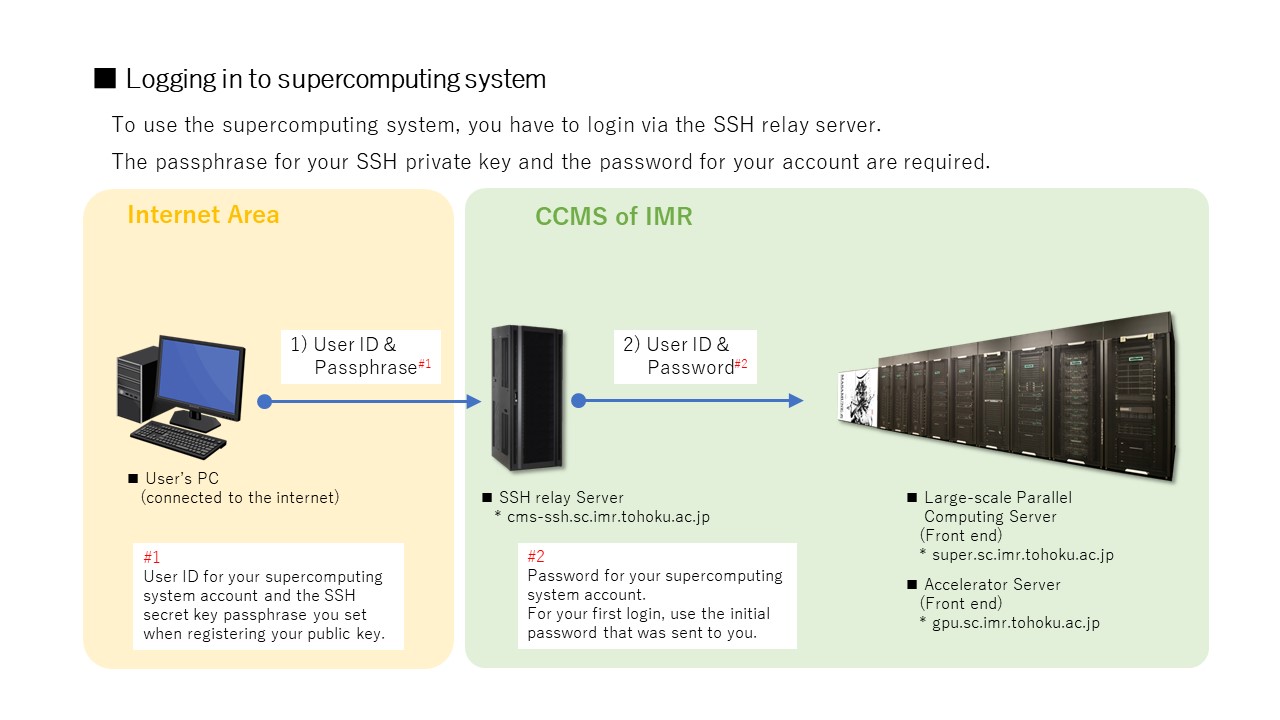
Figure: Logging in to the Supercomputer
Therefore, to log in to the supercomputing system, you need to follow these steps:
Register your public key on the SSH server.
Log in to the SSH server.
Log in to the login node (frontend node) of each system.
The hostnames for connection are as follows:
Destination System |
Node Type |
Hostname |
|---|---|---|
SSH Server |
SSH Relay Server |
cms-ssh.sc.imr.tohoku.ac.jp |
Large-scale Parallel Computing Server |
Frontend Node |
super.sc.imr.tohoku.ac.jp |
Accelerator Server |
Frontend Node |
gpu.sc.imr.tohoku.ac.jp |
Login Procedure
This section describes the procedure from account registration to logging in for the first time.
Prerequisites
A PC with an SSH client installed
The set of documents sent when your account was created:
Account Application Approval Notice
Password Notification Letter
Public Key Registration System Manual (can also be downloaded from here)
Registering Public Key on the SSH Server
Log in to the Public Key Registration System using your username from the application and the password stated in the Password Notification Letter, and register your public key according to the manual.
Be sure to record the passphrase as it will be required when logging in.
Once the public key registration is complete, the download of a zip file containing the corresponding private key will begin. After downloading, extract the zip file using the password sent in a separate email.
When extracted, a private key file named id_rsa will be generated. Please save it in an appropriate directory.
Note
If you do not receive the email containing the password for extracting the zip file, please contact our center.
Logging In to the Server
This section explains how to log in using the ssh command (OpenSSH) from your OS’s standard terminal.
SSH Configuration File
In the explanation below, we assume the followings:
- The user ID in your PC is “pc-user”, and the user ID of your supercomputer account is “sc-user”.
- The private key file id_rsa is saved in C:\Users\pc-user\.ssh\keys\ (Windows) or ~/.ssh/keys/ (Mac or Linux).
Please adjust these values according to your environment.
Create a file named config with the following content in the .ssh directory under your PC’s home directory (C:\Users\pc-user\.ssh\ on Windows).
Windows
Host cms-ssh.sc.imr.tohoku.ac.jp super.sc.imr.tohoku.ac.jp gpu.sc.imr.tohoku.ac.jp
    User sc-user
Host cms-ssh.sc.imr.tohoku.ac.jp
    HostName cms-ssh.sc.imr.tohoku.ac.jp
    IdentityFile "C:\Users\pc-user\.ssh\keys\id_rsa"
Host super.sc.imr.tohoku.ac.jp gpu.sc.imr.tohoku.ac.jp
    ProxyJump cms-ssh.sc.imr.tohoku.ac.jp
Host super.sc.imr.tohoku.ac.jp
    HostName super.sc.imr.tohoku.ac.jp
Host gpu.sc.imr.tohoku.ac.jp
    HostName gpu.sc.imr.tohoku.ac.jp
Mac, Linux
Host cms-ssh.sc.imr.tohoku.ac.jp super.sc.imr.tohoku.ac.jp gpu.sc.imr.tohoku.ac.jp
    User sc-user
Host cms-ssh.sc.imr.tohoku.ac.jp
    HostName cms-ssh.sc.imr.tohoku.ac.jp
    IdentityFile ~/.ssh/keys/id_rsa
Host super.sc.imr.tohoku.ac.jp gpu.sc.imr.tohoku.ac.jp
    ProxyJump cms-ssh.sc.imr.tohoku.ac.jp
Host super.sc.imr.tohoku.ac.jp
    HostName super.sc.imr.tohoku.ac.jp
Host gpu.sc.imr.tohoku.ac.jp
    HostName gpu.sc.imr.tohoku.ac.jp
If you are using Mac or Linux, the permission of .ssh directory and these files should be changed as follows:
chmod 700 ~/.ssh ~/.ssh/keys
chmod 600 ~/.ssh/config ~/.ssh/keys/id_rsa
By setting up this configuration, your connection will automatically go through the SSH server when logging in to the frontend node.
Logging In via ssh Command
Here, let’s log in to the frontend node of the Large-scale Parallel Computing Server (super.sc.imr.tohoku.ac.jp).
Open Command Prompt on Windows, or Terminal on Mac/Linux, and enter the following command:
ssh super.sc.imr.tohoku.ac.jp
You will be prompted to enter the passphrase for the SSH private key and your password as shown below. Enter the passphrase specified when registering the SSH public key, and the password stated in the Password Notification Letter (initial password).
Enter passphrase for key '/home/pc-user/.ssh/keys/id_rsa': {SSH passphrase}
sc-user@super.sc.imr.tohoku.ac.jp's password: {initial password}
When logging in for the first time, you must change your password. Enter the initial password stated in the Password Notification Letter into “Current Password”, and set a new password that follows the rules below in “New password”:
10 or more characters in length
At least one lowercase English letter
At least one uppercase English letter
At least one numeric digit
WARNING: Your password has expired.
You must change your password now and login again!
Current Password:{initial password}
New password:{new password}
Retype new password:{new password}
If the password change is successful, you will be logged out automatically. Log in again with your new password. When the login is successful, a prompt like the following will be displayed:
Last login: Wed Aug 26 16:07:45 2026 from xxx.xxx.xxx.xxx

Disk quotas for user sc-user (uid xxxxx):
     Filesystem    used   quota   limit   grace   files   quota   limit   grace
          /home      0G    500G    550G       -  917739       0       0       -
sc-user@super1:~>